Doubao “Writing Assistant” Export to Word
Please ensure the DeepShare extension is installed in your browser. If not, see the Installation Guide.
This feature requires purchasing an API Key. View pricing.
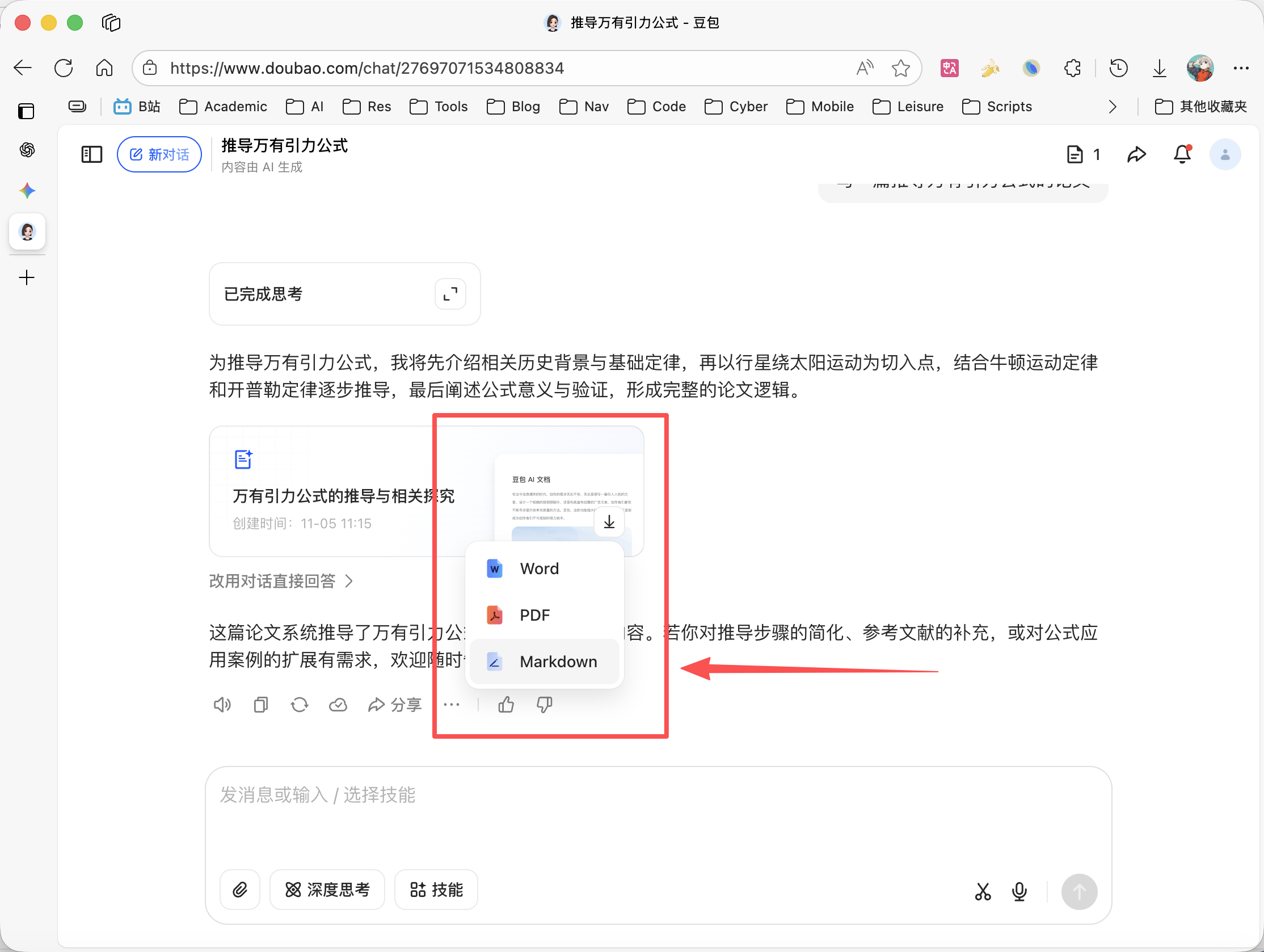
Download Markdown
Hover over the completed article, click download, and select “Markdown” format.
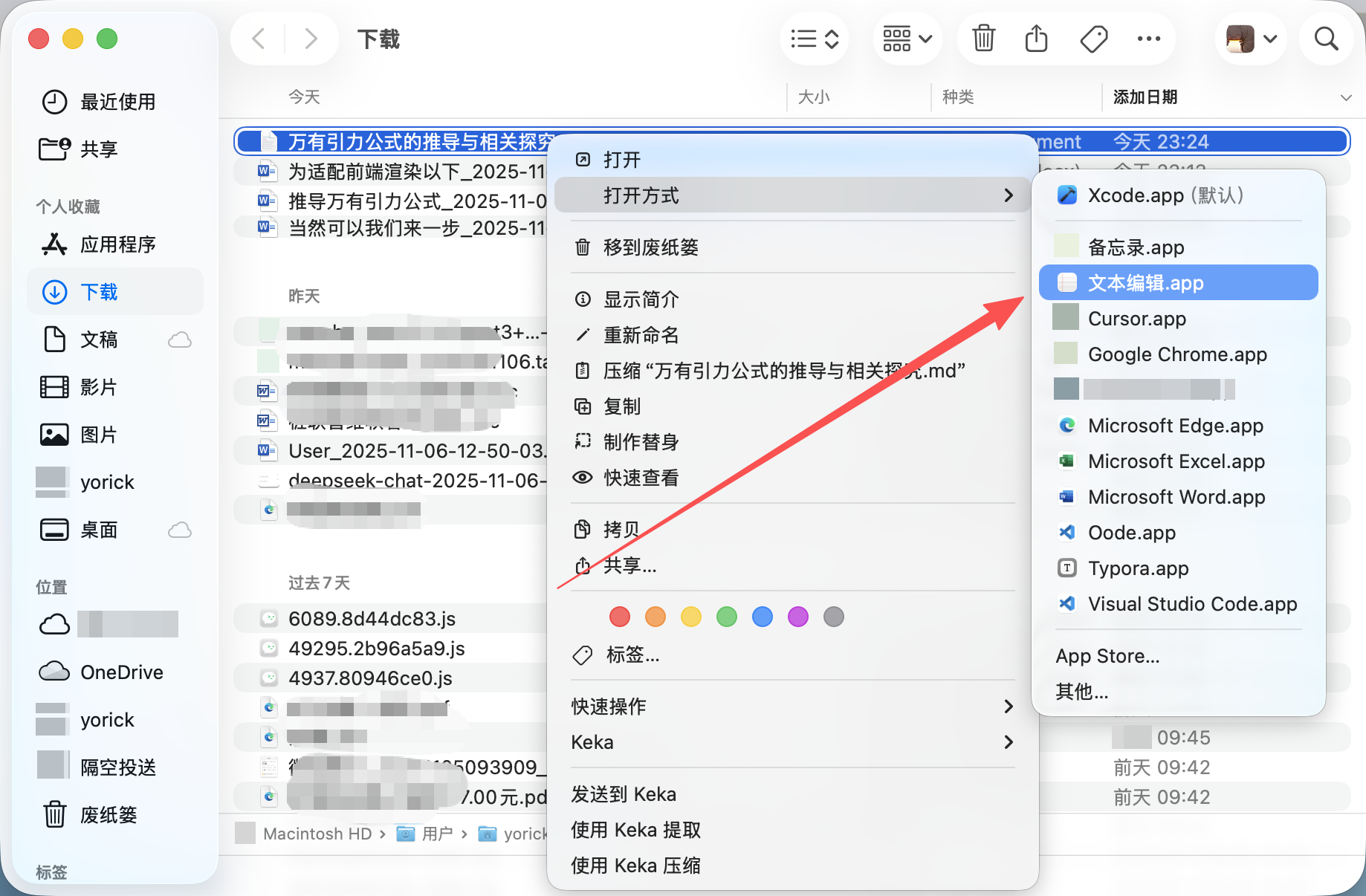
Open the downloaded file
On Windows, open with Notepad.
On Mac, open with TextEdit, or rename the file extension to .txt and open it.
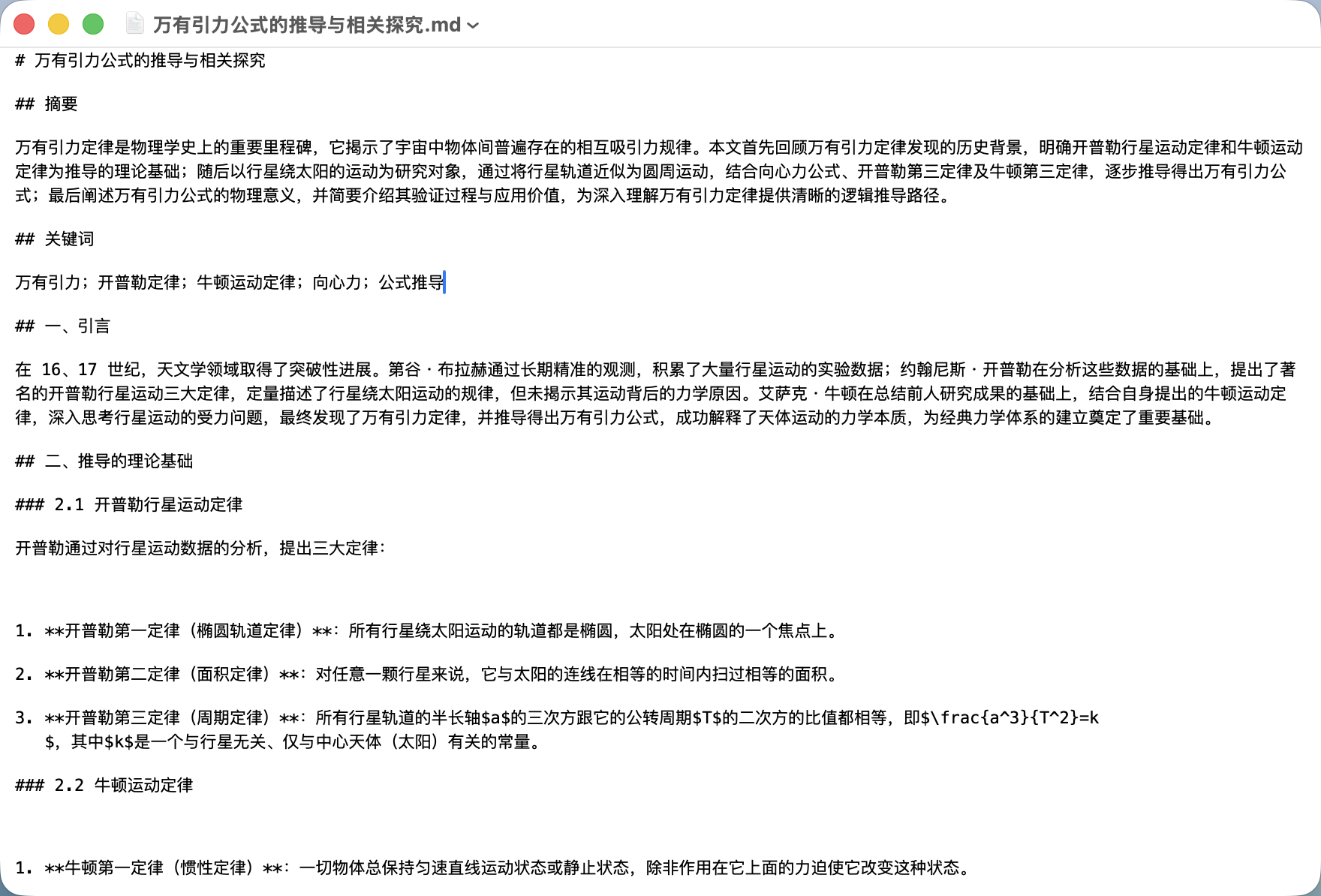
Copy all content
Use Ctrl+A and Ctrl+C to copy all content.
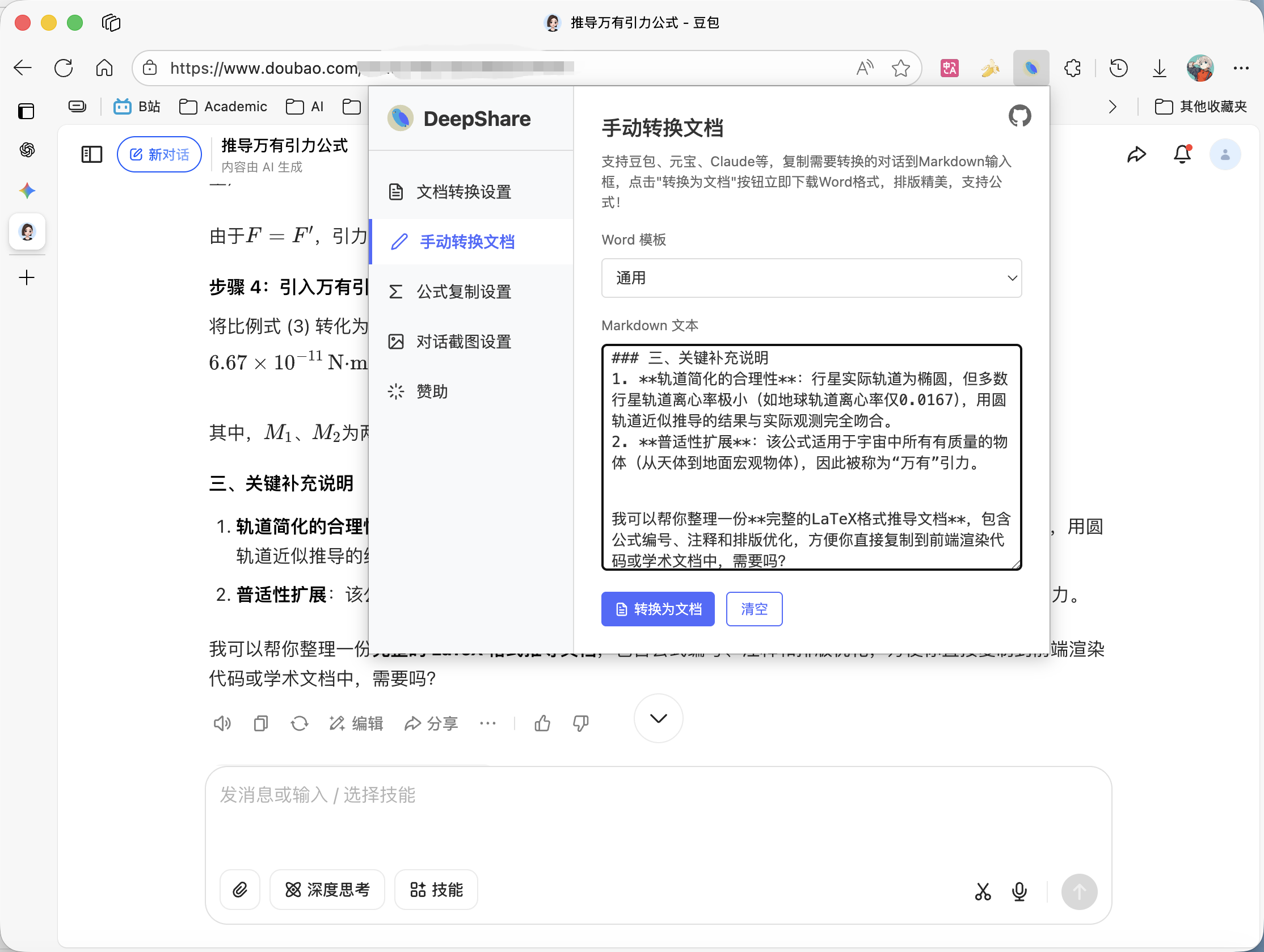
Paste into the extension to convert
Open the extension, go to the “Manual Document Conversion” tab, paste the copied content, and click “Convert to Document”.
If you can’t find the extension, first pin DeepShare to the toolbar.
View the converted document
The document will be automatically downloaded. Open it with Word or WPS.
Last updated on