Installation Guide
This guide will help you install the DeepShare extension on different browsers.
Install from Store (Recommended)
After installation, please refresh any open AI chat pages for the extension to take effect
Microsoft Edge
- Visit the Edge Add-ons Store
- Click the “Get” button
- Confirm the installation in the popup dialog
- After installation, the DeepShare icon will appear in the browser toolbar
Google Chrome
- Visit the Chrome Web Store
- Click the “Add to Chrome” button
- Confirm the installation in the popup dialog
- After installation, the DeepShare icon will appear in the browser toolbar
Mozilla Firefox
- Visit the Firefox Add-ons Store
- Click the “Add to Firefox” button
- Confirm the installation and grant permissions in the popup dialog
- After installation, the DeepShare icon will appear in the browser toolbar
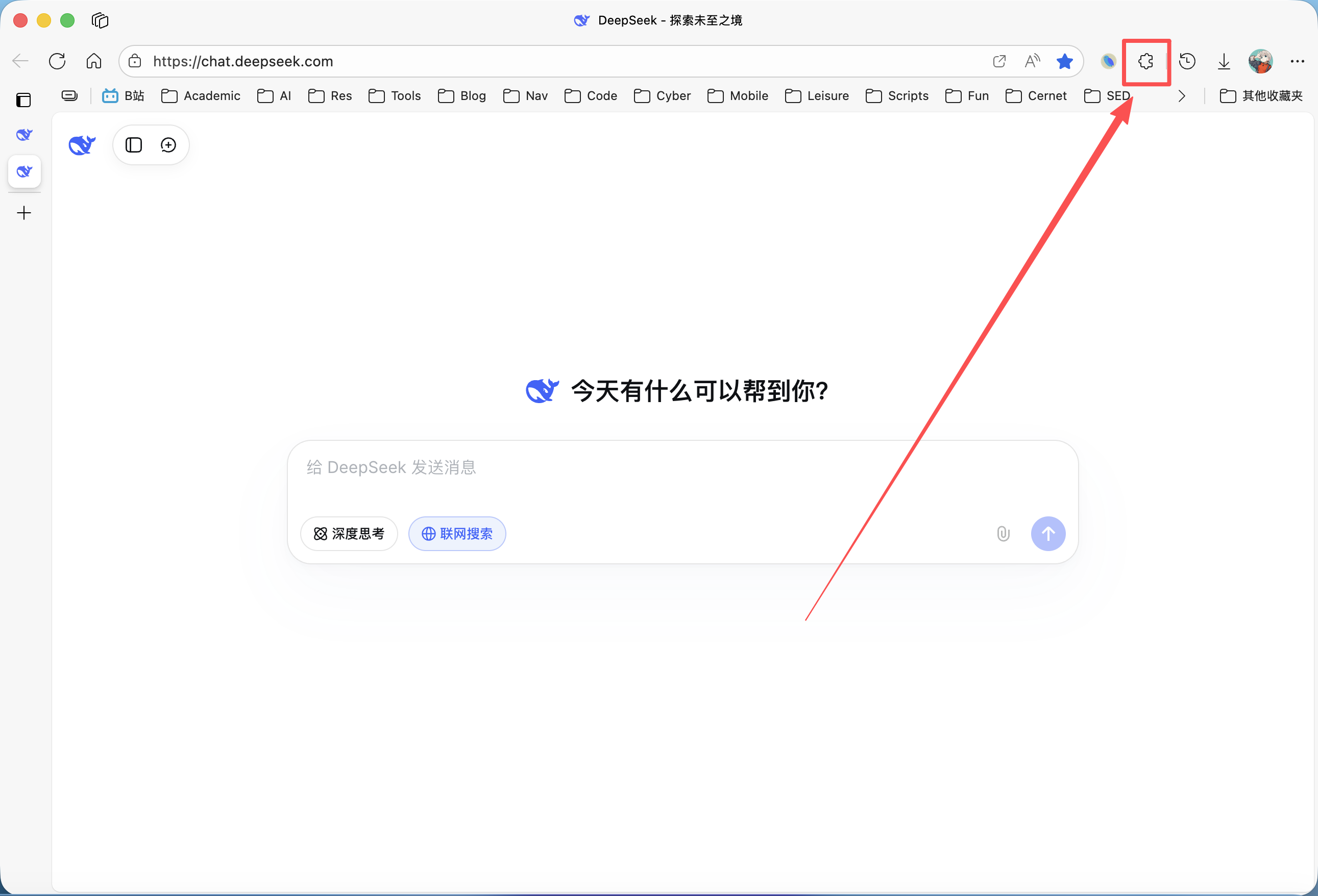
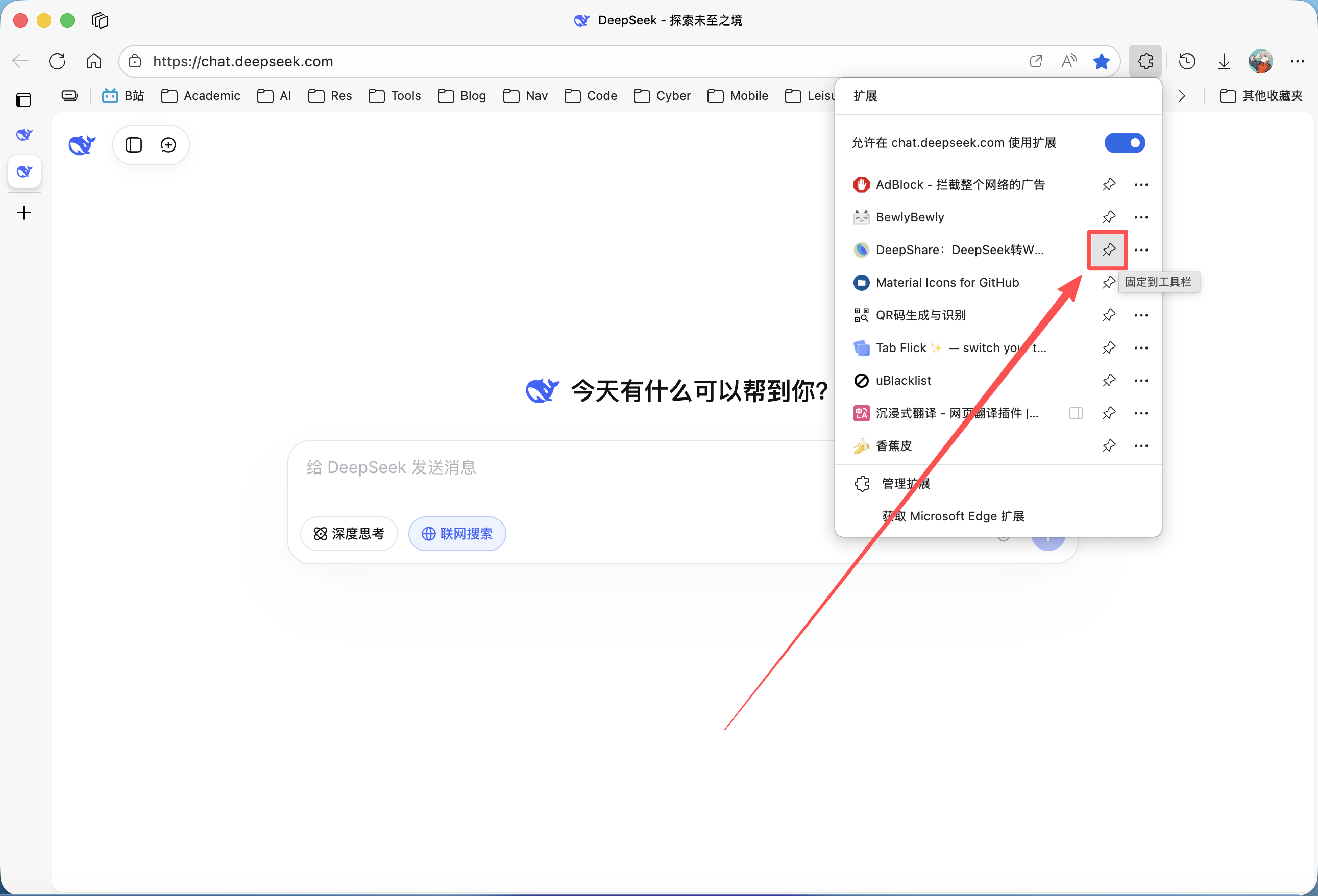
Pin DeepShare to Toolbar

Step-by-step guide:
Local Installation (Developer Mode)
If you want to use the latest development version, you can install from source.
Download the ZIP file directly from GitHub releases:
Or clone the GitHub repository:
git clone https://github.com/Yorick-Ryu/deep-share.gitEdge / Chrome Installation Steps
- Unzip the downloaded source code
- Open your browser and enter in the address bar:
- Edge:
edge://extensions/ - Chrome:
chrome://extensions/
- Edge:
- Enable the “Developer mode” toggle in the top right
- Click “Load unpacked” button
- Select the unzipped
deep-sharefolder - Installation complete!
Verify Installation
After installation, you can verify it as follows:
Check the Browser Toolbar
The browser toolbar should show the DeepShare icon (a blue bird)
Visit an AI Platform
- Open DeepSeek
- Start a new conversation
- You should see the buttons added by DeepShare in the top right of the page
Test Formula Copying
- Ask the AI to generate a response containing a math formula
- Try clicking on the formula
- You should see a successful copy notification
Common Installation Issues
Extension Icon Not Showing
Solution:
- Confirm the extension was successfully installed
- Confirm the extension is pinned to the toolbar
Can’t See Export Button on AI Pages
Solution:
- Refresh the AI chat page (F5)
- Check that the extension is enabled
- Confirm the AI platform is in the supported list
Firefox Security Warning
Solution:
- This is normal — temporarily installed extensions show this warning
- Click “Continue”
- It is recommended to install from the official Firefox Add-ons Store
Edge/Chrome Installation Failed
Solution:
- Confirm “Developer mode” is enabled
- Check that the folder path is correct
- Check the browser console for error messages
- Try re-downloading the source code
Update the Extension
Store Version
Extensions installed from the store update automatically — no manual action needed.
Automatic updates can sometimes be delayed. If you can’t wait, you can update the extension manually (Edge and Chrome):

Local Installation Version
If using developer mode installation:
- Download the latest source code
- Delete the old version files
- Follow the installation steps again
Or update using Git:
cd deep-share
git pull origin main
Then click the “Reload” button on the browser extensions page.