Disable Auto Numbering
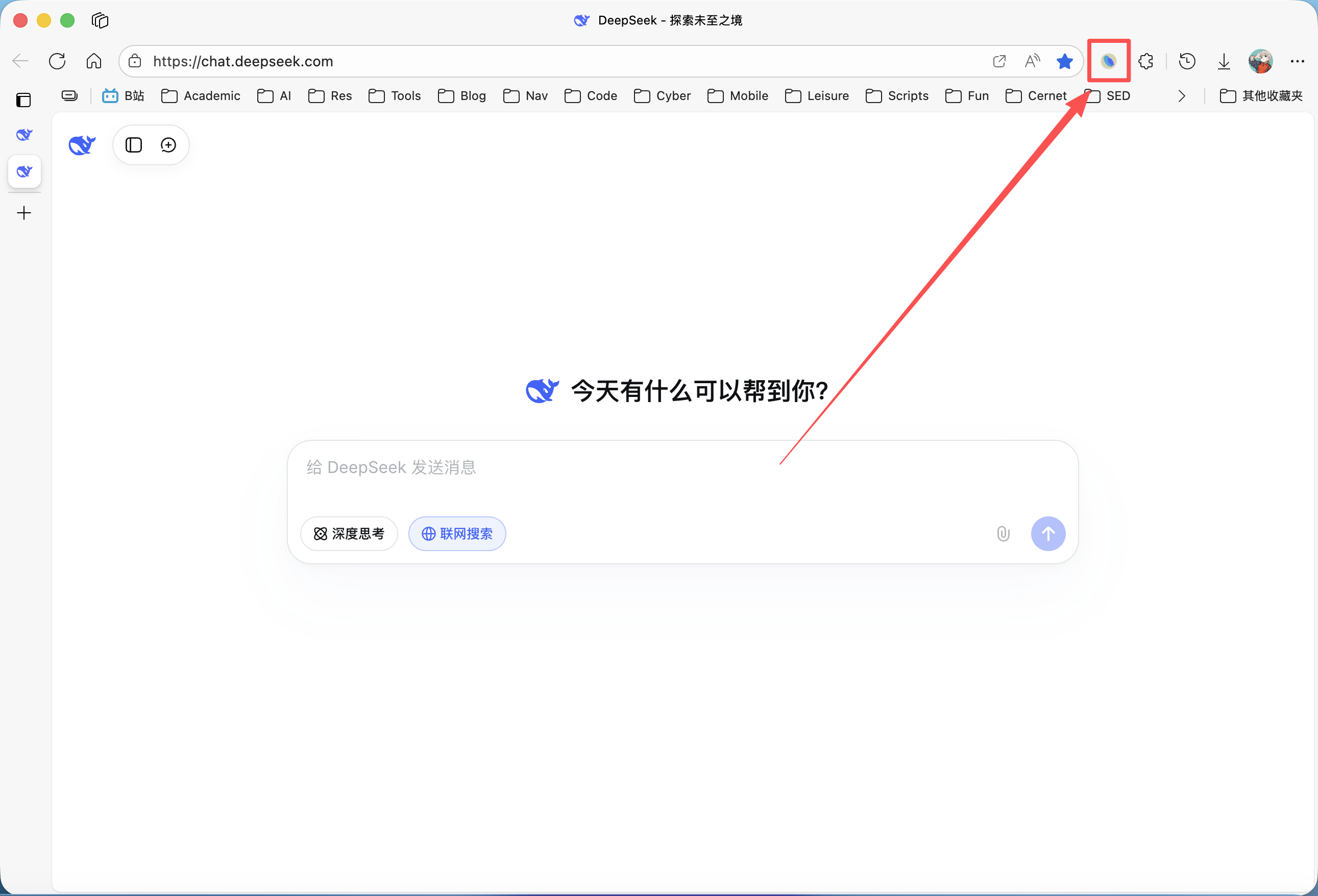
Please ensure the DeepShare extension is installed in your browser. If not, see the Installation Guide.
This option applies to the Word export feature only.
What is Disable Auto Numbering?
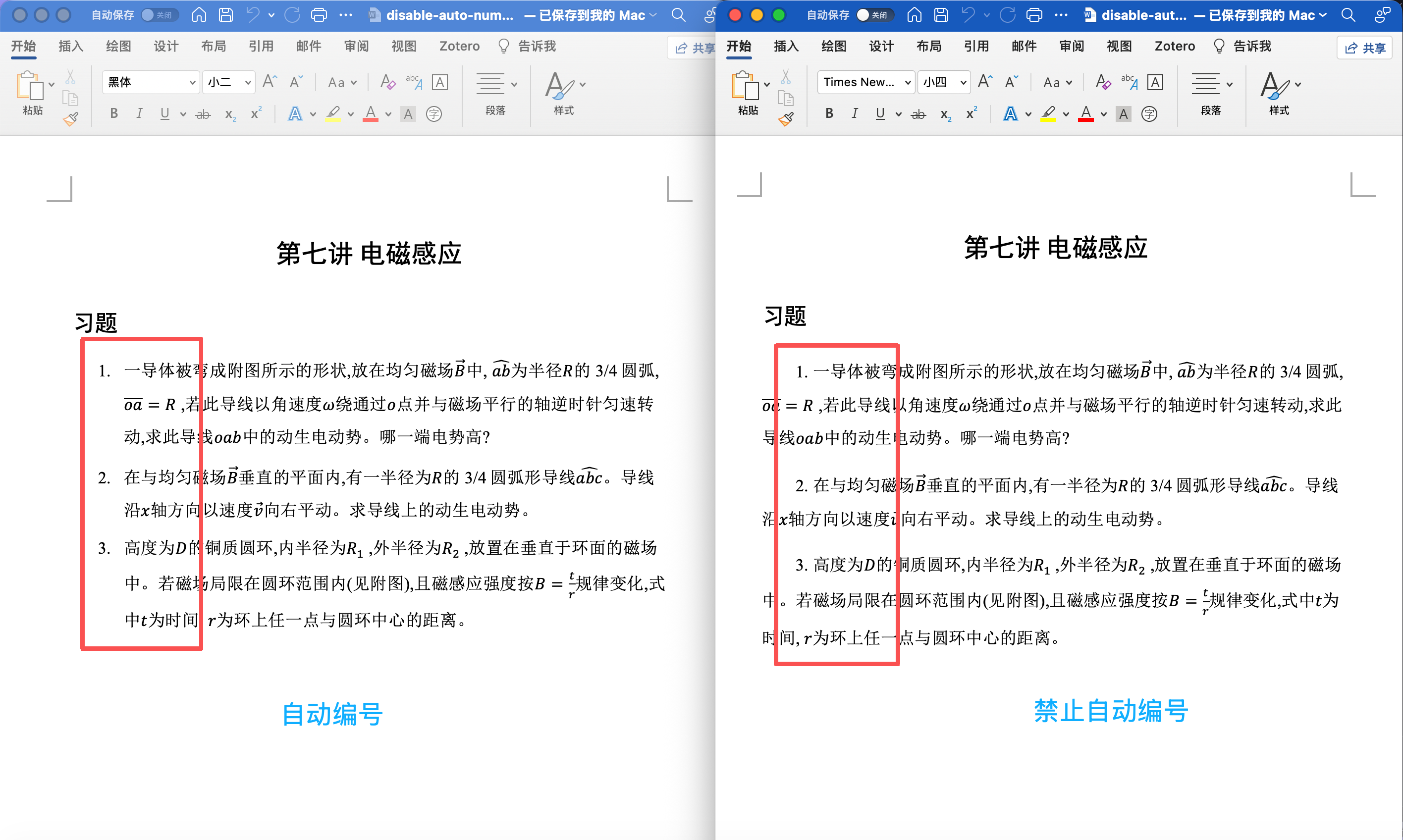
By default, Word treats ordered lists (1., 2., 3.) from Markdown as its native “auto-numbering” lists. While this is usually convenient, when handling certain special layouts (such as exam papers, complex layouts, or content with strict indentation requirements), Word’s automatic list feature can cause uncontrolled indentation, abnormal numbering jumps, or formatting chaos.
When “Disable Auto Numbering” is enabled:
DeepShare uses a backend filter to convert ordered lists into plain text paragraphs with manual numbering. This means in Word, the numbering (e.g., 1. ) exists as plain characters and will not trigger Word’s automatic list indentation and logic.
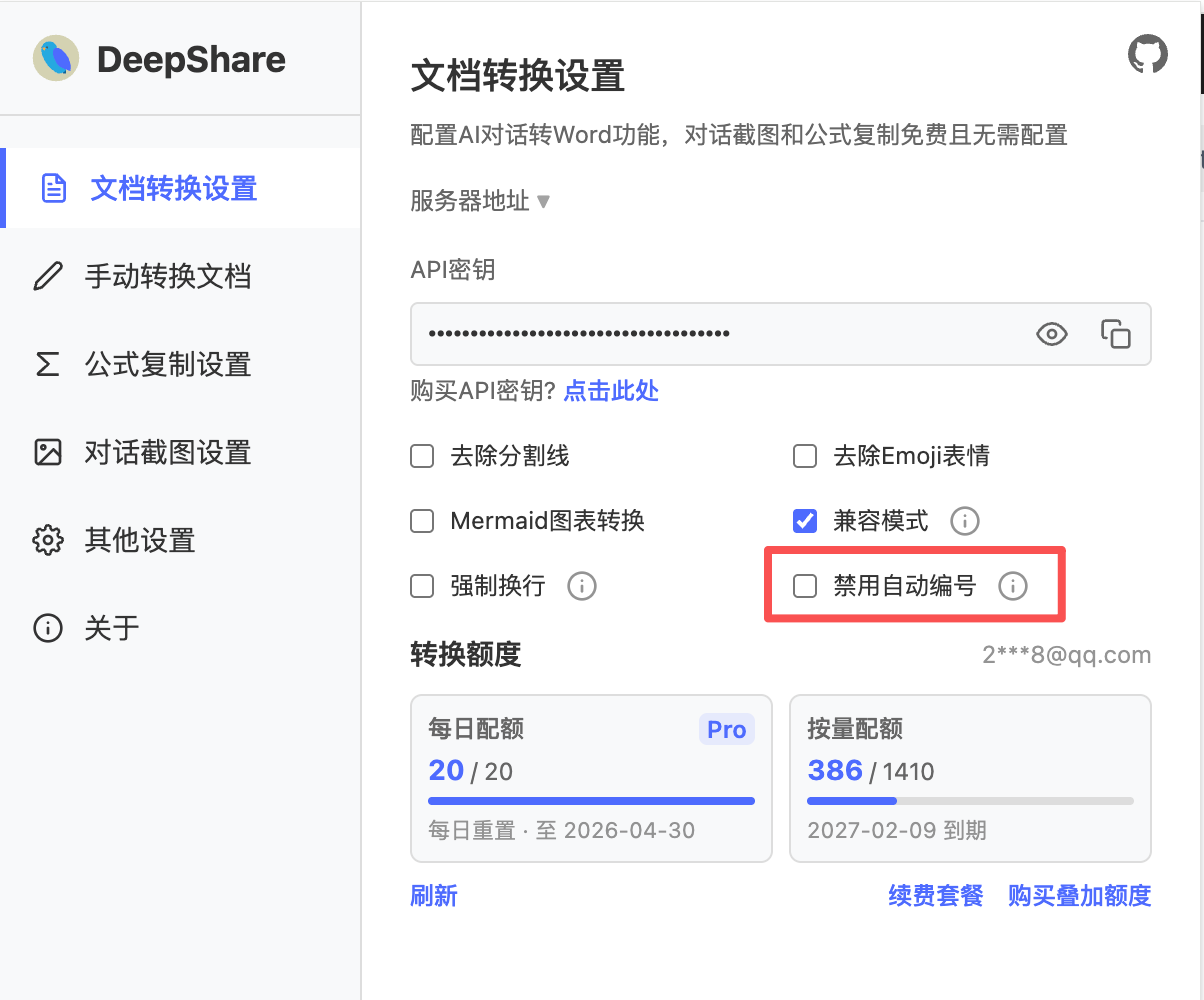
How to Use
This feature is disabled by default. If you want the numbers in the exported list to be editable as plain text (e.g., pressing Enter will not automatically generate the next number), enable this option.